
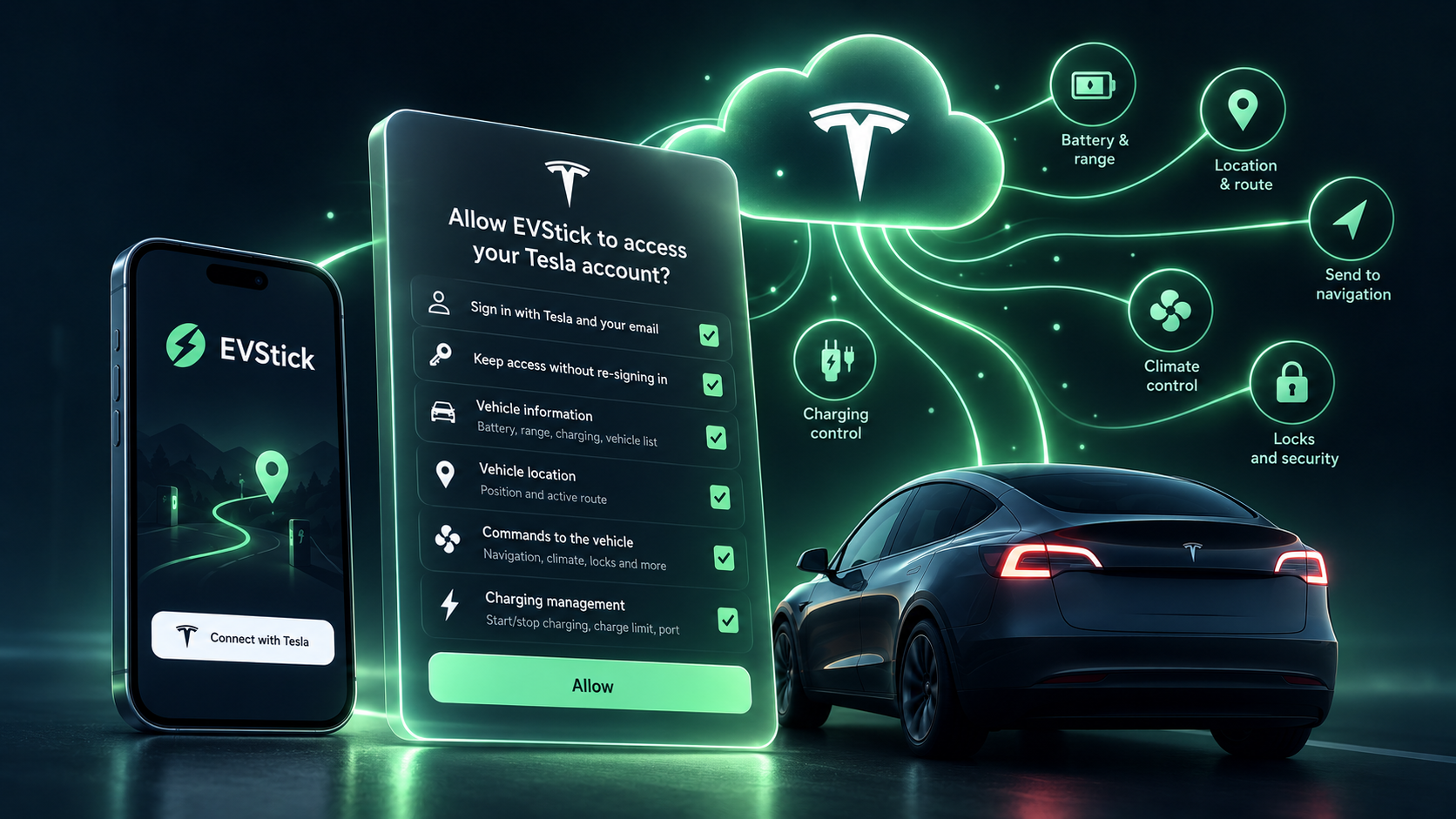
When you connect your Tesla to EVStick, Tesla shows you a screen with a list of permissions, each with a checkbox. It's easy to skim past it, or to untick one "just in case". This post explains each permission: what it is, what EVStick uses it for, and what stops working if you don't grant it.
How the approval works
EVStick never sees your Tesla password. You sign in on Tesla's own site, and Tesla shows you exactly what the app is asking for. You decide what to approve. Tesla then gives EVStick a key that works only for the permissions you ticked.
If you untick something, Tesla simply refuses EVStick that data or command. That's why a missing permission can make parts of the app not work, or stop setup partway through.
Important: these permissions are separate from the virtual key. The permissions tell Tesla what EVStick may read and send through Tesla's servers. The virtual key is approved in the car itself and lets those commands actually reach it. Commands need both. There's a separate post about the virtual key.
At a glance
- Sign in with Tesla and email: you sign in to EVStick with your Tesla account. Without it you can't sign in.
- Staying signed in: EVStick keeps working without making you sign in every few hours. Without it the connection drops after a few hours.
- Vehicle information: battery, range, charging, the list of your cars. Without it setup stops: EVStick can't see your car.
- Vehicle location: trips, charging costs, adding a station as a stop. Without it EVStick works, with limitations.
- Vehicle commands: sending a station to the car's navigation, climate, locks. Without it you can browse stations but can't send them to the car.
- Charging management: start/stop charging, charge limit, charge port. Without it those buttons don't work.
Our advice is simple: leave every box ticked. EVStick only asks for what it actually uses. Each permission is explained in detail below.
Sign in with Tesla and email
What it is: EVStick has no separate account or password. You sign in with your Tesla account, and Tesla tells us who you are and your email address.
What we use it for: knowing which EVStick account is yours, so we recognise you the next time you sign in, even from a different phone.
If you don't grant it: you can't sign in to EVStick. This is the sign-in.
Staying signed in
What it is: The key Tesla gives apps expires after a few hours. This permission lets EVStick get a fresh one without asking you to sign in again.
What we use it for: keeping EVStick ready when you get in the car. Without it, your trip and charging history would have gaps for every stretch where you hadn't signed in recently.
If you don't grant it: after a few hours the connection to your car drops and you have to sign in again. In practice the app becomes unusable.
Vehicle information
What it is: Access to your car's data: battery level, range, whether it's charging and at what power, charge limit, odometer, and whether it's in gear or parked. This also covers the list of cars on your account.
What we use it for: nearly everything. The battery dashboard, the range estimate, trip and charging history, and consumption per 100 km. Without this data EVStick knows nothing about your car.
If you don't grant it: setup stops at step two ("Vehicle"). EVStick can't see which car you have, you'll get an error saying your vehicles couldn't be loaded, and there's no way forward. This is the most important permission.
Vehicle location
What it is: Where your car is, plus details of the active route in its navigation (where you're heading and how far it is).
What we use it for:
- A station as a stop, not a new destination. If you're already driving a route and pick a charging station in EVStick, it's added as a stop along the way and your final destination stays. To do that, EVStick needs to see that the car has an active route.
- Trips with a start and an end. Your history shows where you drove from and to, not just how many kilometres.
- Charging costs. EVStick recognises where you charged: at a specific station (and uses its price) or at home (and uses the electricity tariff for your area).
If you don't grant it: EVStick keeps working, but:
- when you send a station to the car, it replaces your current destination instead of being added as a stop;
- trips have no start or end point;
- charging costs are less accurate or missing.
The app will show a reminder to reconnect your account so you can turn this permission on.
Vehicle commands
What it is: Permission for EVStick to send commands to your car.
What we use it for:
- EVStick's core feature: one tap sends a charging station straight to your car's navigation, and Tesla itself works out what battery percentage you'll arrive with.
- Remote controls in EVStick: turning on climate and defrost, setting the temperature, seat heaters, locking and unlocking, frunk and trunk, windows, Sentry Mode, and honking or flashing the lights when you're looking for the car in a car park.
EVStick only sends a command when you press a button. It never does anything to your car on its own.
If you don't grant it: you can browse stations in EVStick but can't send them to the car. The control buttons won't work either.
Charging management
What it is: A separate permission for charging-related commands. Tesla splits it from the other commands so you can allow them separately.
What we use it for: the buttons to start and stop charging, change the charge limit (say, from 80% to 100% before a long drive), and open or close the charge port.
If you don't grant it: those buttons don't work. Everything else in EVStick works normally.
I unticked something. How do I fix it?
- Open Settings in EVStick.
- Tap Reconnect Tesla Account. If EVStick has noticed a missing permission, the button appears right where the error is.
- Sign in to Tesla and leave every box ticked on the approval screen.
You don't lose any history. Your trips, charging sessions and settings all stay.
Can I take access away later?
Yes, any time. In your account on tesla.com you can see which apps have access to your car and remove EVStick. You can delete the virtual key from the car's screen (under "Locks"). After that, EVStick can no longer read data or send commands.
How we protect the data Tesla gives us is covered in our security post.
Questions? Write to us at hello@evstick.com.